
Gmail Account for Business: Step-by-Step Setup Guide
Set up a dedicated Gmail account for your travel business. Learn setup, verification, security, connect Google Ads, Google Analytics 4 and Search Console.
GOOGLE TIPS
Powerful Digital Marketing
7/10/202610 min read
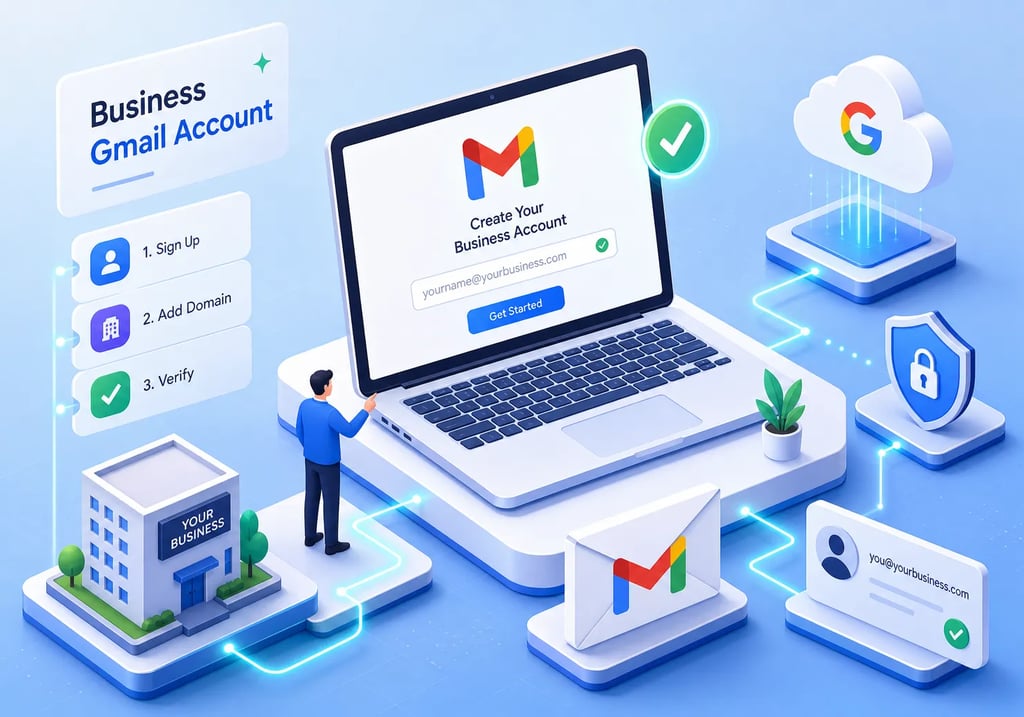
How to Create a Gmail Account for Your Business
Many smaller tour operators and boutique hotel owners run their entire business through a personal Gmail account, using the same login for personal emails, family photo storage, and Google Ads campaigns alike. It works. Until it doesn't. A staff member leaves with the login details, a billing dispute triggers an account suspension, or a marketing partner asks for access and the only option is sharing a password that also unlocks personal data.
The creation of a Gmail account for your travel business is a structural business decision, not a housekeeping task. A dedicated Google Account unlocks Google Ads, Google Analytics 4, Google Search Console, Google Business Profile, and Google Tag Manager under one clean, business-owned login. It is worth noting that these tools are technically accessible through any Google Account, including ones created with a non-Gmail address such as info@yourdomain.com, but a purpose-built Gmail address remains the most practical starting point for most small operators. Each of those tools can support direct-booking strategies and help reduce your dependence on OTAs. The login is the foundation; the strategy built on top of it is where Powerful Digital Marketing helps travel brands turn data into growth.
This guide walks you through the full process: desktop setup, Android setup, phone verification, choosing the right username, securing the account, and connecting it to the Google tools that matter most for your business.
Why your travel business needs its own Google Account
The Google tools waiting behind one login
A single Google Account acts as the master key to a suite of tools that directly influence your bookings. Google Ads puts your tours or rooms in front of travellers at the exact moment they search. Google Analytics 4 reveals where visitors drop off before completing a booking. Search Console shows which destination searches are bringing people to your website and which pages are losing ground to competitors. Google Business Profile ensures your hotel or tour company appears in Google Maps results, critical for boutique properties and local operators.
For UK tour operators and hotel owners, these are not optional extras. They are the infrastructure behind a functioning direct-booking channel. Using a personal Gmail to access them creates billing confusion, muddies the data ownership trail, and introduces serious problems if you ever bring in a marketing partner or hand over access to a member of staff.
Why a business-specific account protects your brand long term
The practical risks of running a travel business through a personal Gmail become clear quickly. If a staff member who manages your Google Ads account leaves and the login is tied to their personal details or your personal inbox, recovering clean access can take days or weeks in some cases, depending on the circumstances and Google's account recovery process. If you want to work with a digital marketing partner, sharing a password that also accesses personal files is neither secure nor professional.
Start with a brand-focused email address from day one. Something like bookings@[yourtravelcompany].co.uk or info@[yourtravelcompany].co.uk communicates professionalism every time it appears in a Google Ads account, an Analytics access invitation, or a Search Console verification email. Even if you are using a @gmail.com address temporarily before migrating to a custom domain, the username should reflect the business, not the individual. Google Accounts can also be created using a non-Gmail business address, which is worth considering if you already have a branded domain email in place.
Creation of a Gmail account on desktop: step by step
Getting started at gmail.com
Open your browser and go to gmail.com. Click Sign in in the top-right corner, then select Create account from the options. When prompted to choose the account type, select For my personal use. Business owners can use this option and upgrade to Google Workspace later if needed, keeping the same underlying Google Account and all its connected tools.
Enter your first and last name on the first screen, then click Next. On the following screen, you will be asked for your date of birth and gender. Google uses date of birth to verify age eligibility, so enter yours accurately. Click Next to move on to the address and password stage.
Choosing your Gmail address and setting a password
Google will suggest several available email addresses based on your name. Ignore them and click Create your own Gmail address to type in a brand-relevant username. This address will appear across every Google tool you connect to this account, so it needs to look professional. The section below on picking the right username covers the specifics for travel businesses.
Set a password with a minimum of eight characters, mixing letters, numbers, and symbols. Do not treat this as a minor detail. This password protects access to your Google Ads billing, your Analytics data, and your Search Console property. Use a password manager to generate and store something genuinely strong, and keep a record of it somewhere secure outside the account itself.
Completing phone verification and finalising the account
Google requires a UK mobile number for verification in most cases. Enter it starting with 07 or in the international format +44, then wait for the SMS verification code. Enter the code when it arrives and click Next. At this stage, Google may prompt you to add a recovery email address. You can skip this for now and return to it once the account is active, though the security section below explains why adding it immediately is the better choice.
Review Google's Terms of Service, click I agree, and your new account will load. For most users, the process takes well under ten minutes, though timing can vary depending on the phone verification step and any additional age checks Google applies. If you prefer a detailed walkthrough of the signup process, see this guide to signing up with Gmail.
Gmail account creation on Android: setup guide
Adding a Google Account through Android settings
On your Android device, open Settings and scroll to Passwords and Accounts (labelled simply as Accounts on some older devices). Tap Add account, select Google, then tap Create account and choose For my personal use. From here, the steps mirror the desktop process: enter your name, date of birth, and gender, then choose a username and password.
This route produces exactly the same Google Account as the desktop method, with full access to all connected Google tools. It is particularly convenient for tour operators who manage bookings and check campaign performance primarily from a mobile device rather than a laptop. For a thorough Android-specific walkthrough, consult the how to set up a Google Account on Android guide.
When Android sometimes skips phone verification
Creating a Google Account through Android settings rather than a web browser frequently bypasses the mandatory phone number step. Google's risk-scoring algorithm treats established devices as lower risk than new browser sessions, so the phone prompt is often optional rather than required. If the option to skip it appears, you can proceed without entering a number, though adding one later as a recovery method is strongly recommended.
Skipping phone verification is not guaranteed. It depends on the device's history, the IP address, and how Google's risk-scoring algorithm classifies that particular signup. If the prompt appears without a skip option, entering a valid UK mobile number is the most straightforward path forward.
Phone verification and username selection for your Gmail registration
What to do if Google insists on a phone number
Phone verification is standard practice for new Google Accounts in the UK, and for a legitimate travel business, it is worth embracing rather than working around. The phone number serves as a recovery method and adds a meaningful layer of security to an account that will control advertising spend and website analytics data.
If you genuinely cannot or do not want to link a personal mobile number, a prepaid UK SIM card is the most reliable alternative. Available for under £10 from most supermarkets, they work consistently with Google's verification system. Virtual number services and free public SMS websites are frequently blocked by Google and pose security risks, as the numbers are shared with other users.
Picking a Gmail username that reflects your travel brand
The username you choose becomes part of every access invitation, billing notification, and account alert sent by Google's tools. A username like cotswoldtoursinfo or helloboutiquehotelbath signals that the account belongs to a real business. Random numbers appended to a personal name do the opposite, and they raise questions for marketing partners reviewing account access.
Recommended formats combine hello@, bookings@, or info@ with the business name or a key destination. If the ideal username is already taken, adding a location or descriptor works better than numbers. For example, pembrokeshiretoursinfo is preferable to pembrokeshiretours1987 when the address will be visible across professional tools. A clear, brand-relevant username also improves recognisability in partner invitations and Analytics access requests.
Securing your new account from day one
Adding a recovery email and phone number
Go to myaccount.google.com and click the Security tab. Under How you sign in to Google, you will find options to add a recovery email and recovery phone number. The recovery email should be a non-Gmail address, a domain email or an Outlook account works well. This avoids the single point of failure that occurs when the only recovery route leads back to the same compromised inbox.
Review these recovery details every six months, and update them immediately whenever a phone number changes. A locked Google Account means losing access to every connected Google Ads campaign, every Analytics property, and every Search Console verification. For a travel business running paid search and tracking booking data, that is not a recoverable situation quickly.
Enabling two-step verification to protect your booking data
Navigate to Security , then 2-Step Verification, and click Get started. Google offers several verification methods: Google Prompt, SMS code, or an Authenticator app. For a business account that controls advertising spend and website data, an Authenticator app such as Google Authenticator or Authy provides stronger protection than SMS, which can be intercepted or delayed.
Once two-step verification is active, Google provides a set of backup codes. Save these in a password manager or another secure location outside the account. If the primary verification device is lost or unavailable, these codes are the only way back in. This is not optional housekeeping, it is essential protection for the commercial data the account holds.
Connecting Gmail to the Google tools that grow travel bookings
The Google tools your travel brand should link first
With the account live and secured, the next step is connecting it to the platforms that do the actual work. Start by verifying your website in Google Search Console: this shows which destination searches bring visitors to your site, which pages rank and which are losing ground, and where content gaps exist that competitors are filling. A boutique hotel in the Cotswolds and a coastal kayak tour operator each have very specific search terms their ideal guests use, Search Console is where that intelligence lives.
Create a Google Analytics 4 property linked to the same Gmail to track visitor behaviour on your website: where booking abandonment happens, which pages generate the most enquiries, and how traffic from organic search compares to paid. Then create or link a Google Ads account under the same login to run paid search campaigns targeting travellers at the exact moment they are searching for what you offer, see our Google Ads for Travel Businesses: Run Profitable Campaigns guide for sector-specific campaign advice. You can also link ad performance to your CRM and reporting stack by choosing integrations carefully; here is guidance on how to connect Google Ads to HubSpot. Finally, claim your Google Business Profile through the same account, for boutique hotels and local tour operators, appearing in map results is one of the highest-converting actions available at no cost per click.
How Powerful Digital Marketing helps travel brands make every Google tool count
The Gmail sign-up itself is the straightforward part. The harder work begins once the tools are connected. Configuring Analytics to track actual booking conversions rather than just page views requires careful setup. Running Google Ads campaigns that return a positive ROAS without draining budget on the wrong audiences demands sector knowledge. Interpreting Search Console data in a way that shapes a content strategy aligned with how travellers actually search is a different skill again, if you want practical help, our Rank a Travel Website on Google: Actionable Guide Now walks through content and technical steps that affect organic visibility.
Powerful Digital Marketing is an AI-powered agency focused exclusively on the travel industry, working across hotels, tour operations, and cruise. The team's approach to campaign management across Google's platforms is shaped by travel-specific booking cycles and traveller behaviour patterns rather than generic digital marketing frameworks. If you are a boutique hotel owner or small tour operator who has just completed the creation of a Gmail account and wants to move from having the tools in place to using them strategically, that is the specific challenge Powerful Digital Marketing is built to solve. For a deep-dive on paid search strategy specific to travel, see our Google Ads for Travel: Complete Strategy Guide 2026.
Your next step after the creation of your Gmail account
The creation of a Gmail account for your travel business takes well under ten minutes and delivers long-term value as the login behind every Google growth tool you will ever use. The key actions are clear: create the account on desktop or Android, choose a professional username that reflects the brand, complete phone verification, secure the account with recovery options and two-step verification, then connect to Search Console, Analytics, and Google Ads.
Travel brands that set this foundation early and build a deliberate strategy on top of it consistently reduce OTA dependency. Direct booking channels compound over time, each campaign smarter than the last because the data beneath it is cleaner and more complete. The Gmail registration is the starting line, not the finish line.
If the strategy side feels complex or you are unsure how to configure these tools effectively for a travel business, Powerful Digital Marketing exists precisely to help with that. Getting the account right is step one. Getting the most out of what it unlocks is where the real booking growth happens.
Frequently asked questions about Gmail account creation
Can I create a Gmail account without a phone number?
In some cases, yes. Creating a Google Account through Android settings rather than a browser frequently bypasses the mandatory phone verification step. On desktop, skipping phone verification is less common and depends on how Google's risk-scoring algorithm assesses the signup. For a business account, adding a phone number as a recovery method is strongly recommended regardless of whether it was required during setup. If you are exploring legitimate alternatives, this guide on creating a Gmail account without a phone number explains common scenarios and the associated caveats.
Do I need a Gmail address specifically, or will any Google Account work?
The Google tools, Ads, Analytics 4, Search Console, Business Profile, and Tag Manager, are all accessible through any Google Account, including one created with a non-Gmail address such as your existing business domain email. A @gmail.com address is the simplest starting point for most small operators, but Gmail registration is not strictly required if you already have a branded business email you would prefer to use.
How do I add a recovery email to Gmail after setup?
Go to myaccount.google.com, select the Security tab, and look under How you sign in to Google. From there you can add or update both a recovery email address and a recovery phone number. Use a non-Gmail address, such as a domain email or Outlook account, as your recovery email to avoid a single point of failure.
ADDRESS
The Powerful Group Limited
124 City Road
London
United Kingdom
EC1V 2NX
WORKING HOURS
Monday - Friday 9:00 AM - 6:00 PM
Saturday - Sunday 8:00 AM - 12:00 PM
Want to Call? Ask our Powerful Bot for the Number